Right-to-left languages
Arabic, Hebrew, Persian and Urdu are written from right to left (RTL). An app in one of them should read from right to left too: the back button on the right, labels on the right of their fields, the first item of a row on the right. Bellui does most of this for you, from the user’s locale. This page covers what you still have to do as a translator, and what to check.
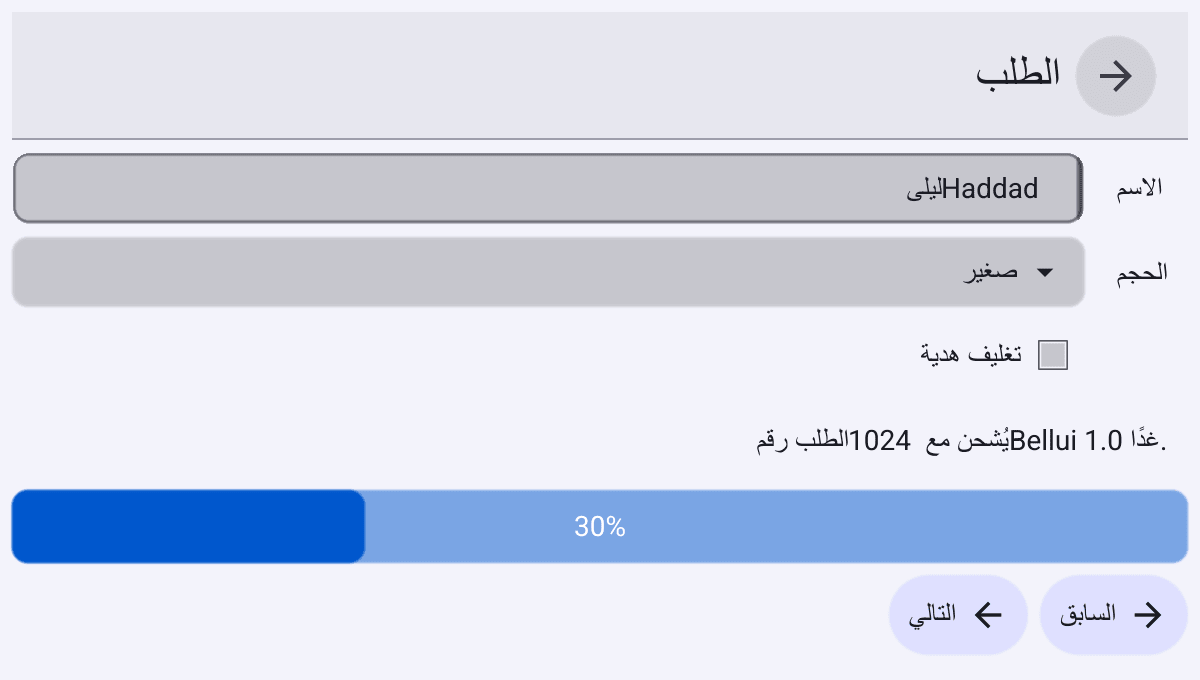
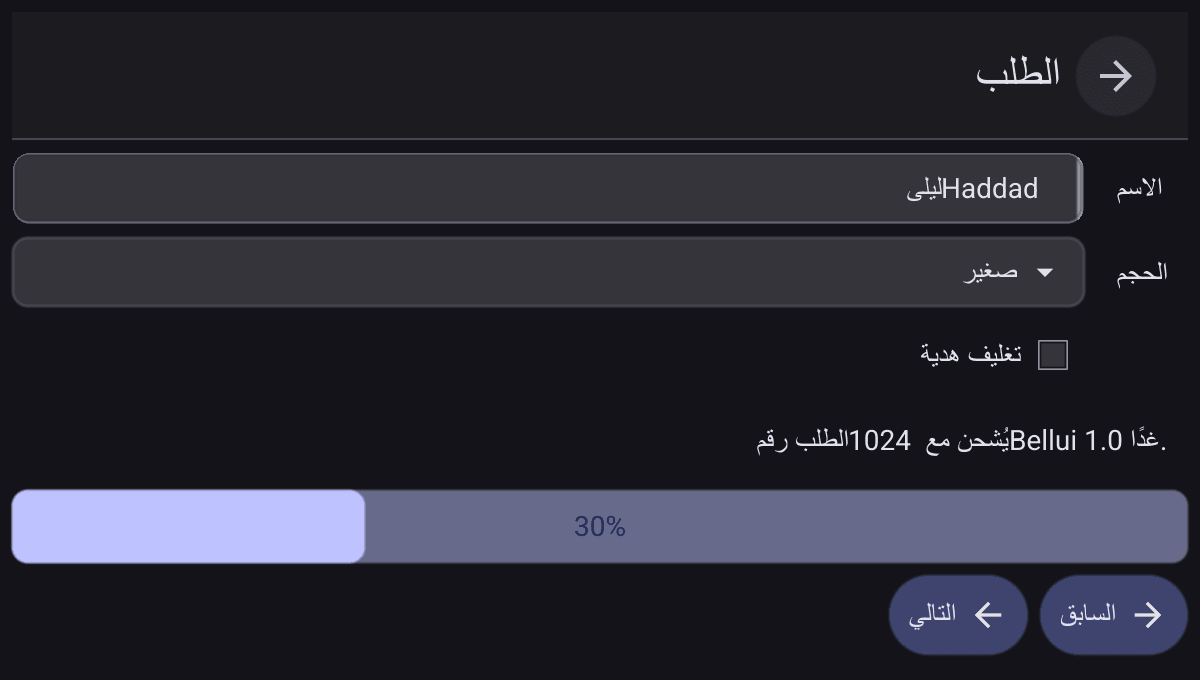
The screenshot is the example program further down. Most of it is right. The sentence under the check box is not: see Mixed Arabic and Latin text.
The direction comes from the locale
You do not need to call anything to get a right-to-left layout. At startup
Bellui reads the user’s locale from the operating system. When that locale
is written in a right-to-left script, every window is laid out right to
left. The scripts are Arabic, Hebrew, Syriac, Thaana, N’Ko, Samaritan,
Mandaic, Mende Kikakui, Adlam, Hanifi Rohingya and Yezidi. So ar, he,
fa, ur, ps, yi, ckb, sd, ug and dv are right to left, and so
is any locale with an explicit script, such as pa-Arab.
The direction follows the same locale as dates and numbers, and it changes with it:
lang.SetLocalechanges translations, formats and direction together, and lays out every window again. See Switching language.lang.IsRTLDirectiontells you the direction in use.lang.IsRTLLocaletells you whether a given locale is right to left.bellui.SetLayoutDirectionoverrides the locale for the whole app. You need it only to force a direction, for example to test your layout before you have translations. Right-to-left layout in the Theming section covers it, and how to keep one part of a window in a fixed direction.
bellui.SetLayoutDirection(bellui.DirectionLTR) at startup.Translating
Add a translation file for each language, as for any other language: see Translations. Two things matter more for right-to-left languages.
Translate Bellui’s own text too. Bellui ships its own text, such as
“Cancel”, “OK”, the month and weekday names of the date picker and the
items of the text edit menu, in 15 languages. Arabic, Hebrew, Persian and
Urdu are not among them. Your file can translate these messages, because
Bellui looks them up the same way as yours: add the IDs from Bellui’s
English file,
lang/translations/base.en.json,
to your own. The month names use IDs such as march, and the weekday
initials at the top of the calendar use IDs such as monday.narrow. Each
message you leave out shows in English and logs a “Translation failure”
error.
Ship each language you mean to support. When the user’s language has no file, Bellui picks the closest one that has. For Persian that can be Arabic: in v1.0.0 an app with an Arabic file but no Persian file shows a Persian user the Arabic text. Urdu and Hebrew users fall back to English in the same situation.
Example
This app loads an Arabic translation and forces the Arabic locale, so it shows right to left on any machine. A real app leaves the locale to the system:
// A real app follows the system locale and needs no call here. This
// example forces Arabic so that it shows right to left on any machine.
lang.SetLocale("ar")
The interface is built with ordinary widgets and containers. Nothing in it is specific to right-to-left layout:
bar := widget.NewTopAppBar(lang.L("Order"), theme.NavigateBackIcon(), func() {})

name := widget.NewEntry()
name.SetText("ليلى Haddad")
size := widget.NewSelect([]string{lang.L("Small"), lang.L("Large")}, nil)
size.SetSelectedIndex(0)
form := widget.NewForm(
	widget.NewFormItem(lang.L("Name"), name),
	widget.NewFormItem(lang.L("Size"), size),
	widget.NewFormItem("", widget.NewCheck(lang.L("Gift wrap"), nil)),
)

// Arabic with a Latin name and numbers in it.
note := widget.NewLabel(lang.L("Order 1024 ships with Bellui 1.0 tomorrow."))

buttons := container.NewHBox(
	widget.NewButtonWithIcon(lang.L("Previous"), theme.NavigateBackIcon(), func() {}),
	widget.NewButtonWithIcon(lang.L("Next"), theme.NavigateNextIcon(), func() {}),
)
The translation file maps the English text to Arabic. It also translates Bellui’s own “Cancel” and “OK”:
{
  "Order": "الطلب",
  "Name": "الاسم",
  "Next": "التالي",
  "Previous": "السابق",
  "Cancel": "إلغاء",
  "OK": "موافق"
}
Fonts
None of Bellui’s bundled text fonts has Arabic or Hebrew letters. When a letter is missing from the theme’s font, Bellui looks in this order:
- Fonts you registered with
bellui.RegisterFontFallback. - The fonts installed on the system.
Desktop systems usually have Arabic and Hebrew fonts, so text shows without any work. A browser (WebAssembly) build has no system fonts to search, so there you must ship a font with the app and register it. Register it once, before you build the interface. This example loads the font from a file next to the app and carries on without it when the file is missing:
// No bundled text font has Arabic or Hebrew letters. Desktop systems
// usually supply them; elsewhere, register a font of your own before
// building the UI.
if res, err := bellui.LoadResourceFromPath("NotoSansArabic-Regular.ttf"); err == nil {
	bellui.RegisterFontFallback(res)
}
For a browser build, embed the font file with //go:embed and wrap the
bytes in a resource with
bellui.NewStaticResource
instead of loading it from a path. A registered font is also how you get the
same letter shapes on every platform. Pick a font that covers every script your translations use, such
as Noto Sans Arabic or Noto Sans Hebrew.
Letter shapes and text direction
Bellui shapes text with HarfBuzz, so Arabic letters join and take the right form for their position in the word. This does not depend on any setting: it comes from the text itself.
The base direction of a paragraph decides where it starts and where
neutral characters such as spaces and punctuation go. In Bellui it comes
from the layout direction, not from the text. Bellui does not guess it from
the first letter. In an Arabic app every label and entry starts on the
right, even one holding English text. For a piece of text whose direction
differs from the interface, set Direction in its
bellui.TextStyle
to bellui.TextDirectionLTR or bellui.TextDirectionRTL. Language in the
same style overrides the language used for shaping, which selects
language-specific letter forms where the font has them. Left empty, it
follows the locale.
In an Entry,
the left and right arrow keys move the cursor in the direction the text
appears on screen, not through the characters in stored order.
Mixed Arabic and Latin text
canvas.Text.Bellui splits such a line into runs of one direction and shapes each run correctly. It then draws the runs from left to right in the order they are stored, instead of reordering them for reading. Each word is readable, but words land in the wrong place. In the right-to-left screenshot above:
- The sentence “Order 1024 ships with Bellui 1.0 tomorrow.” in Arabic starts on the left instead of the right. The number 1024 sits on the wrong side of the word before it, and the full stop is at the right-hand end instead of the left.
- The name “ليلى Haddad” in the entry shows Haddad on the right, with no visible space between the two words.
In a right-to-left app, a line ending in punctuation is enough: “مرحبا بالعالم!” shows the exclamation mark on the right of the sentence instead of the left. In a left-to-right app, an Arabic or Hebrew phrase inside English text is drawn correctly unless the phrase contains digits: “Hello ابجد هوز world” is right, “Order عدد 1024” shows the number on the wrong side. A line in a single direction, such as only Arabic or only Hebrew words and spaces, is always drawn correctly, as are the labels, buttons and title in the screenshot.
Until this is fixed, check every translated string that contains a number, a Latin name or punctuation in the running app. Where you can, keep Latin text, such as a product name or an email address, in its own widget next to the Arabic one, since containers place their children in the right order.
What mirrors
Under a right-to-left layout, Bellui mirrors:
- Containers and layouts.
HBox,Border,Grid,Formand the responsive layout place their first child on the right. A form puts its labels on the right of the fields. - Text alignment. Text aligned to the leading edge, the default for labels and entries, sits on the right.
- Widgets laid out in a row, among them the top and bottom app bars, the
navigation bar, app tabs, chips, check boxes, segmented buttons, button
groups, split buttons, spin boxes, the carousel and the status bar. A
button with an icon puts the icon on the right of its text.
Selectshows its arrow on the left. - Directional icons.
NavigateBack,NavigateNext,MenuExpand,MailReply,MailReplyAllandMailForwardare drawn mirrored, so a back arrow points right. See Icons. - Keyboard. Tab moves focus through each row from right to left. In a
Selectand aGridWrap, the left and right arrow keys swap. - Scrolling. A horizontally scrolling area starts at its right-hand end.
What does not mirror
These keep their left-to-right arrangement in a right-to-left app in v1.0.0. Check each one you use:
- Sliders and progress bars fill from the left, and a slider’s minimum is on the left.
Splitkeeps its leading pane on the left.Treekeeps the expand arrow on the left of each row.Tablekeeps column 0 on the left.RadioGroupkeeps the radio button on the left of each option.- Buttons with
ButtonAlignLeading, includingAccordionheaders, keep their content on the left. - All other icons: media controls such as play, fast forward and skip, undo and redo, and every icon or image you supply. Mirror your own artwork yourself when it points in a reading direction.
- Your own layouts and drawings. Objects you position yourself, in a custom layout or a container without a layout, stay where you put them. Custom layouts explains how to mirror them.
Numbers and dates
Formats follow the locale, separately from translations. For example,
lang.FormatDecimal writes 1234.5 as ١٬٢٣٤٫٥ for ar and as ۱٬۲۳۴٫۵ for
fa. See Formats. The month and weekday names in the date
picker are translations, not formats, so they need the IDs described in
Translating.
The full program:
// An Arabic, right-to-left app: translations, a mirrored layout, mixed
// Arabic and Latin text, and an optional font for Arabic letters.
package main

import (
	"embed"

	"github.com/belluikit/bellui"
	"github.com/belluikit/bellui/app"
	"github.com/belluikit/bellui/container"
	"github.com/belluikit/bellui/lang"
	"github.com/belluikit/bellui/theme"
	"github.com/belluikit/bellui/widget"
)

//go:embed translations
var translations embed.FS

func main() {
	// No bundled text font has Arabic or Hebrew letters. Desktop systems
	// usually supply them; elsewhere, register a font of your own before
	// building the UI.
	if res, err := bellui.LoadResourceFromPath("NotoSansArabic-Regular.ttf"); err == nil {
		bellui.RegisterFontFallback(res)
	}

	if err := lang.AddTranslationsFS(translations, "translations"); err != nil {
		bellui.LogError("Could not load translations", err)
	}

	// A real app follows the system locale and needs no call here. This
	// example forces Arabic so that it shows right to left on any machine.
	lang.SetLocale("ar")

	a := app.New()
	w := a.NewWindow(lang.L("Order"))

	bar := widget.NewTopAppBar(lang.L("Order"), theme.NavigateBackIcon(), func() {})

	name := widget.NewEntry()
	name.SetText("ليلى Haddad")
	size := widget.NewSelect([]string{lang.L("Small"), lang.L("Large")}, nil)
	size.SetSelectedIndex(0)
	form := widget.NewForm(
		widget.NewFormItem(lang.L("Name"), name),
		widget.NewFormItem(lang.L("Size"), size),
		widget.NewFormItem("", widget.NewCheck(lang.L("Gift wrap"), nil)),
	)

	// Arabic with a Latin name and numbers in it.
	note := widget.NewLabel(lang.L("Order 1024 ships with Bellui 1.0 tomorrow."))

	buttons := container.NewHBox(
		widget.NewButtonWithIcon(lang.L("Previous"), theme.NavigateBackIcon(), func() {}),
		widget.NewButtonWithIcon(lang.L("Next"), theme.NavigateNextIcon(), func() {}),
	)

	progress := widget.NewProgressBar()
	progress.SetValue(0.3)

	w.SetContent(container.NewBorder(bar, nil, nil, nil,
		container.NewVBox(form, note, progress, buttons)))
	bellui.ShowAndRun(w)
}