Code editor
x/editor provides
editor.Editor,
a text editor for source code. It adds to a multi-line text field what a
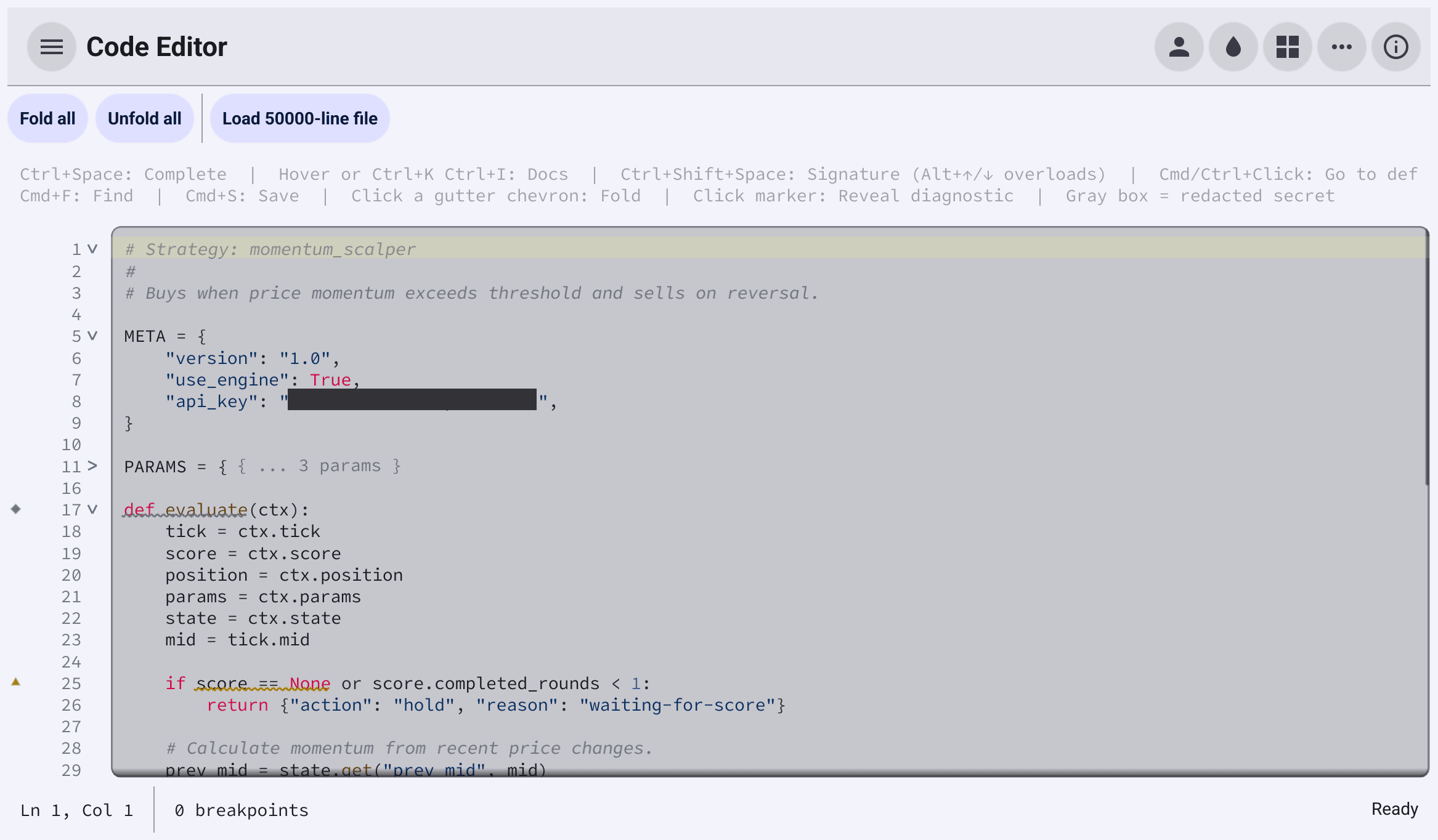
code editor needs: coloured syntax, a gutter beside the text, folding, a find
bar, and hooks for completion, hover documentation and error markers. Each
piece is optional and pluggable, so you can have line numbers without
highlighting, or highlighting without a gutter.
Install
go get github.com/belluikit/bellui/x/editor@latestA first editor
// A Go editor with line numbers and a save handler.
package main

import (
	"log"
	"os"

	"github.com/belluikit/bellui"
	"github.com/belluikit/bellui/app"
	"github.com/belluikit/bellui/geo"

	"github.com/belluikit/bellui/x/editor"
	"github.com/belluikit/bellui/x/editor/highlight/golang"
)

const source = `package main

import "fmt"

// main prints a greeting.
func main() {
	name := "Bellui"
	fmt.Printf("Hello, %s!\n", name)
}
`

func main() {
	a := app.New()
	w := a.NewWindow("main.go")
	w.Resize(geo.NewSize(700, 450))

	ed := editor.NewEditor()
	ed.Highlighter = golang.New()
	ed.Gutter = editor.NewLineNumberGutter()
	ed.SetText(source)

	ed.OnSave = func() { // Cmd+S on macOS
		if err := os.WriteFile("main.go.txt", []byte(ed.Text()), 0o644); err != nil {
			log.Println(err)
		}
	}

	w.SetContent(ed)
	bellui.ShowAndRun(w)
}editor.NewEditorcreates the widget with sensible defaults: automatic indentation, four-space indents, and at least 20 visible rows.Highlightercolours the text; here, the Go highlighter.Gutterdraws to the left of the text. It stays in place when the text scrolls sideways.SetTextreplaces the whole document. It clears the undo history and does not callOnChanged, which reports only the user’s edits. To change the text the way a user edit would, with undo, useApplyEditorApplyEdits.OnSaveandOnRunare called for Cmd+S and Cmd+R on macOS. On other systems these, and the find shortcuts below, use the Super (Windows) key in place of Cmd.
Keyboard shortcuts only reach the editor while it has focus: the user clicks
into it, or you call Focus() once the window is showing.
container.Scroll: the outer
scroll takes the pointer events, so clicks never reach the editor. Place it
directly in a layout that gives it space, such as the centre of a border
layout. The editor logs a warning if it finds itself inside a scrolling
container.SetReadOnly(true) stops editing but keeps the syntax colours.
MinRows sets the minimum height in rows, and AutoGrow makes the editor grow
with its content, between MinAutoGrowRows and MaxAutoGrowRows.
Syntax highlighting
Four highlighters ship with the module, each in its own package under
highlight/:
| Package | Language |
|---|---|
highlight/golang | Go, including raw strings and block comments that span lines |
highlight/starlark | Starlark and Python. AddBuiltins registers extra built-in names, and starlark.IndentProvider() indents after a line ending in a colon and dedents else:, elif, except and finally. |
highlight/proto3 | Protocol Buffers |
highlight/pxf | PXF, a text format for Protocol Buffer messages |
For another language, implement
Highlighter,
or wrap a function in HighlighterFunc. The editor calls it once per line. It
returns styled runs that together cover the line, and a state number that is
passed to the next line, so a construct like a block comment can continue
across lines. State 0 means “nothing open”.
var iniHighlighter = editor.HighlighterFunc(func(line string, state int) ([]editor.StyleRun, int) {
	// Colour an INI file: [sections], key = value, and ; comments.
	// No construct spans lines, so the returned state is always 0.
	trimmed := strings.TrimSpace(line)
	switch {
	case strings.HasPrefix(trimmed, ";"):
		return []editor.StyleRun{{Text: line, ColorName: editor.ColorNameSyntaxComment, Italic: true}}, 0
	case strings.HasPrefix(trimmed, "["):
		return []editor.StyleRun{{Text: line, ColorName: editor.ColorNameSyntaxKeyword, Bold: true}}, 0
	}
	key, value, ok := strings.Cut(line, "=")
	if !ok {
		return []editor.StyleRun{{Text: line}}, 0
	}
	// The runs must cover the whole line, in order.
	return []editor.StyleRun{
		{Text: key, ColorName: editor.ColorNameSyntaxType},
		{Text: "=", ColorName: editor.ColorNameSyntaxOperator},
		{Text: value, ColorName: editor.ColorNameSyntaxString},
	}, 0
})
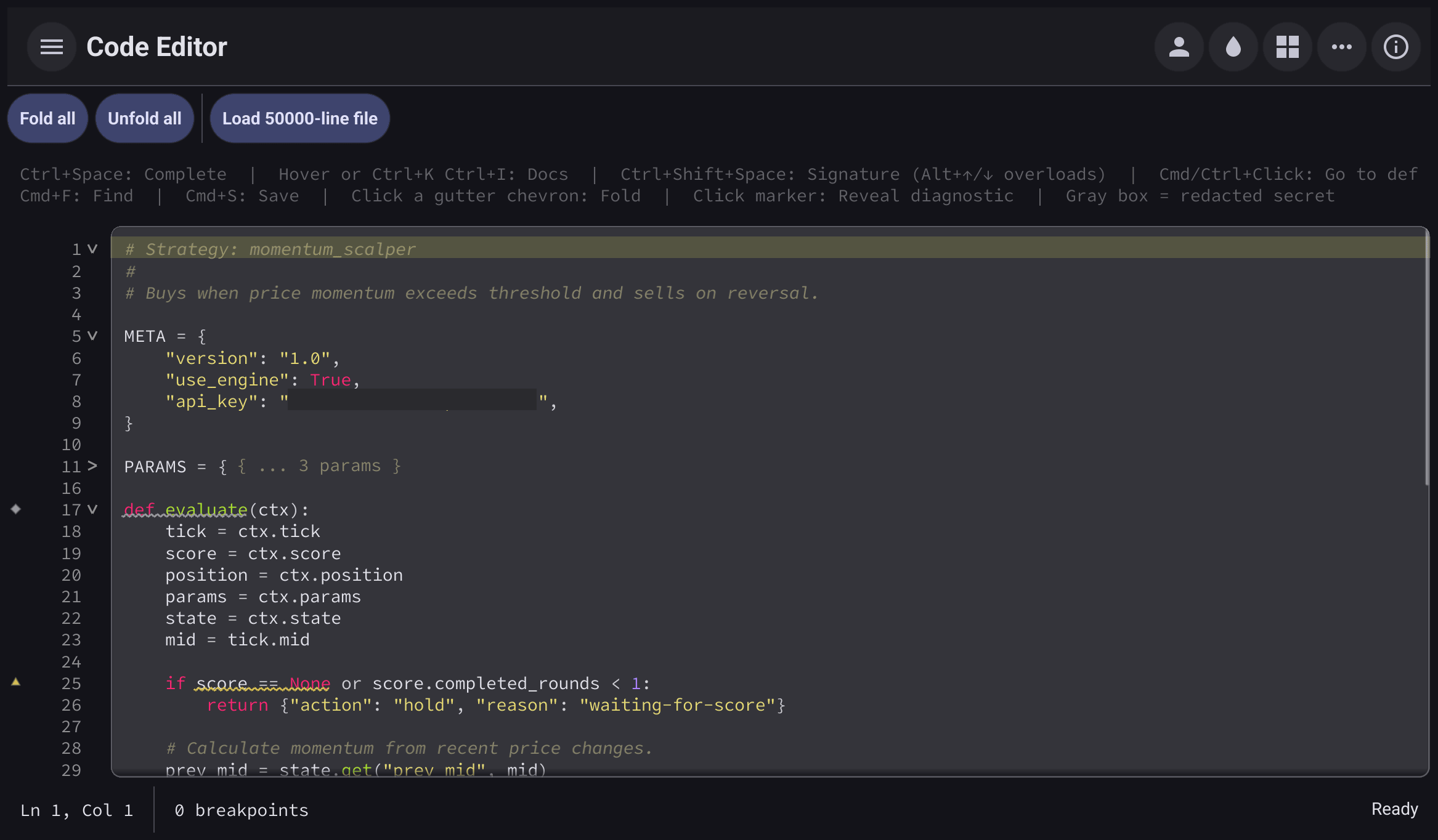
A run names a colour with ColorName rather than a fixed colour, so it follows
the theme. The ColorNameSyntax... constants (keyword, string, comment,
number, builtin, function, operator, type, annotation) are looked up in your
app’s theme first. A theme that does not define them gets built-in light and
dark defaults. A run can also set ForegroundColor directly, a
BackgroundColor, and bold, italic or underlined text.
The gutter
A GutterProvider
draws one column of the gutter. Combine several with NewCompositeGutter:
ed := editor.NewEditor()
ed.Highlighter = starlark.New()
ed.SetText(script)

breakpoints := editor.NewBreakpointGutter(func(lines map[int]bool) {
	status.SetText(fmt.Sprintf("%d breakpoints", len(lines)))
})
// NewCompositeGutter puts the columns in the usual order:
// markers, then line numbers, then fold controls.
ed.Gutter = editor.NewCompositeGutter(
	editor.NewLineNumberGutter(),
	ed.FoldGutter(),
	ed.DiagnosticGutter(),
	breakpoints,
)
Whatever order you pass them in, the composite arranges the columns
conventionally: markers (breakpoints, diagnostics) on the outside, line
numbers next, and fold controls beside the text. Use
NewCompositeGutterInOrder to keep your own order.
| Provider | What it shows |
|---|---|
NewLineNumberGutter() | Line numbers. MinDigits reserves width (default 3). |
NewBreakpointGutter(fn) | A dot on lines the user clicks. fn receives the set of marked lines, numbered from 1. |
ed.FoldGutter() | Arrows that fold and unfold regions. |
ed.DiagnosticGutter() | A marker for each diagnostic, shaped by severity. |
The fold and diagnostic gutters belong to the editor, so you get them from it
rather than creating new ones. If you change the gutter after the editor is
shown, call ApplyGutter.
Folding
The editor does not work out fold regions by itself. You tell it which line ranges can fold, typically from your own parser or language server:
// Rows and columns count from 0.
ed.SetFoldRegions([]editor.FoldRegion{
	{Range: editor.TextRange{StartRow: 0, EndRow: 1}, Kind: editor.FoldKindComment},
	{Range: editor.TextRange{StartRow: 3, EndRow: 9}, Kind: editor.FoldKindBlock},
})
A region with Collapsed: true starts folded; Summary replaces the default
... placeholder. From code, Fold, Unfold, FoldAll and UnfoldAll
change the state, and AutoFold folds a range that was not registered.
Diagnostics
A Diagnostic
marks a range of text with a severity and a message. The editor draws a wavy
underline under the range, a marker in the diagnostic gutter, and shows the
message when the pointer rests on the range.
ed.SetDiagnostics([]editor.Diagnostic{
	{
		Range:    editor.TextRange{StartRow: 7, StartCol: 7, EndRow: 7, EndCol: 20},
		Severity: editor.SeverityWarning,
		Message:  "compare with None using 'is'",
		Source:   "lint",
	},
})
ed.SetDiagnosticClickToReveal(true) // clicking a marker moves to the problem
Severities are SeverityError, SeverityWarning, SeverityInfo and
SeverityHint. SetDiagnostics replaces the whole set each time, so you can
call it whenever your checker finishes; pass nil to clear them. Call it on the
UI thread.
Find
Cmd+F opens a find bar above the text (the Super key on Linux and Windows).
Typing highlights every match; Enter or Cmd+G moves to the next and
Shift+Cmd+G to the previous; Escape closes it. A switch makes the search case
sensitive. ShowFind, FindNext, FindPrev and HideFind do the same from
code, for example from your own menu.
Completion, hover and signatures
The editor asks providers you install for language help. Each is an interface with one method, called on the UI thread, so it should answer quickly.
ed.SetCompletionProvider(&editor.WordListCompletionProvider{
	Words: []string{"def", "return", "greet", "print", "len"},
	Kind:  editor.CompletionKeyword,
})
ed.SetHoverProvider(&editor.WordHoverProvider{
	Docs: map[string]string{
		"greet": "**greet(name)**\n\nReturns a greeting for `name`.",
	},
	Text: ed.Text,
})- Completion shows a list of candidates while the user types, or on
Ctrl+Space. A
CompletionProviderreturnsCompletionItems with a label, the text to insert, an optional detail and documentation.WordListCompletionProvideroffers a fixed list. - Hover shows a card when the pointer rests on a word, or on Cmd+K
Cmd+I (Ctrl+K Ctrl+I on Linux and Windows). A
HoverProviderreturns markdown or plain text.WordHoverProviderlooks words up in a map. - Signature help shows a function’s parameters when the user types
(or,in a call, or presses Cmd+Shift+Space (Ctrl+Shift+Space on Linux and Windows). Install aSignatureHelpProvider;FuncSignatureProviderreads signatures from a map. - Go to definition: a
LinkProvidermarks words that can be followed. Cmd-click on macOS, or Ctrl-click elsewhere, or F12, calls the function you register withOnRequestNavigation.
The interfaces are shaped like the Language Server Protocol’s requests, so a
bridge to a language server can implement them, but they carry no LSP types.
ed.KeyMap changes the completion, signature and go-to-definition shortcuts;
start from editor.DefaultKeyMap().
Decorations
Decorations draw over the text without changing it.
A row decorator draws across a whole line, for example the current line in a debugger. A span decorator draws over a character range: an underline (solid, wavy or dotted), a background, a box or a strike-through.
current := editor.NewCurrentLineDecorator(1) // 1-based
ed.Decorators = []editor.RowDecorator{current}
ed.OnCursorChanged = func(row, col int) { // 0-based
	current.Row = row + 1
	ed.RefreshDecorators()
}

ed.SpanDecorators = []editor.SpanDecorator{&editor.StaticSpanDecorator{
	SpansList: []editor.DecoratedSpan{{
		Range: editor.TextRange{StartRow: 3, StartCol: 0, EndRow: 3, EndCol: 5},
		Kind:  editor.SpanBox,
		Color: color.NRGBA{R: 33, G: 150, B: 243, A: 255},
	}},
}}
Note that CurrentLineDecorator.Row counts lines from 1, while cursor
positions and TextRange count from 0. After changing a decorator’s fields,
call RefreshDecorators. After replacing the Decorators or
SpanDecorators slice, call ApplyDecorators.
Two related features protect parts of the text:
SetRedactionshides ranges behind an opaque bar, for secrets such as API keys. The caret cannot enter a hidden range, and edits to it are refused.SetProtectedRangesmakes ranges read-only while the rest stays editable. The ranges move with the text as the user edits above them.
Large documents
The gutter and the decorations are drawn only for the visible lines, so long
files stay responsive. For documents of several megabytes, set DeferTextSync: the editor
then reports the text to OnChanged at natural pauses (a new line, a deletion,
moving to another line, losing focus) instead of on every keystroke.
Licence
x/editor is BSD 3-Clause licensed, like Bellui.